> ## Documentation Index
> Fetch the complete documentation index at: https://docs-staging.incredibuild.com/llms.txt
> Use this file to discover all available pages before exploring further.
# Managing Licenses
Last updated on Mar 14, 2023
Your license is validated by communicating with our license server every 8 hours. If your Coordinator machine fails to connect to the license server for 7 days, your license will be locked until the connection is re-established. If your license is locked, you can only perform local builds with limited features.
## Viewing your License Details
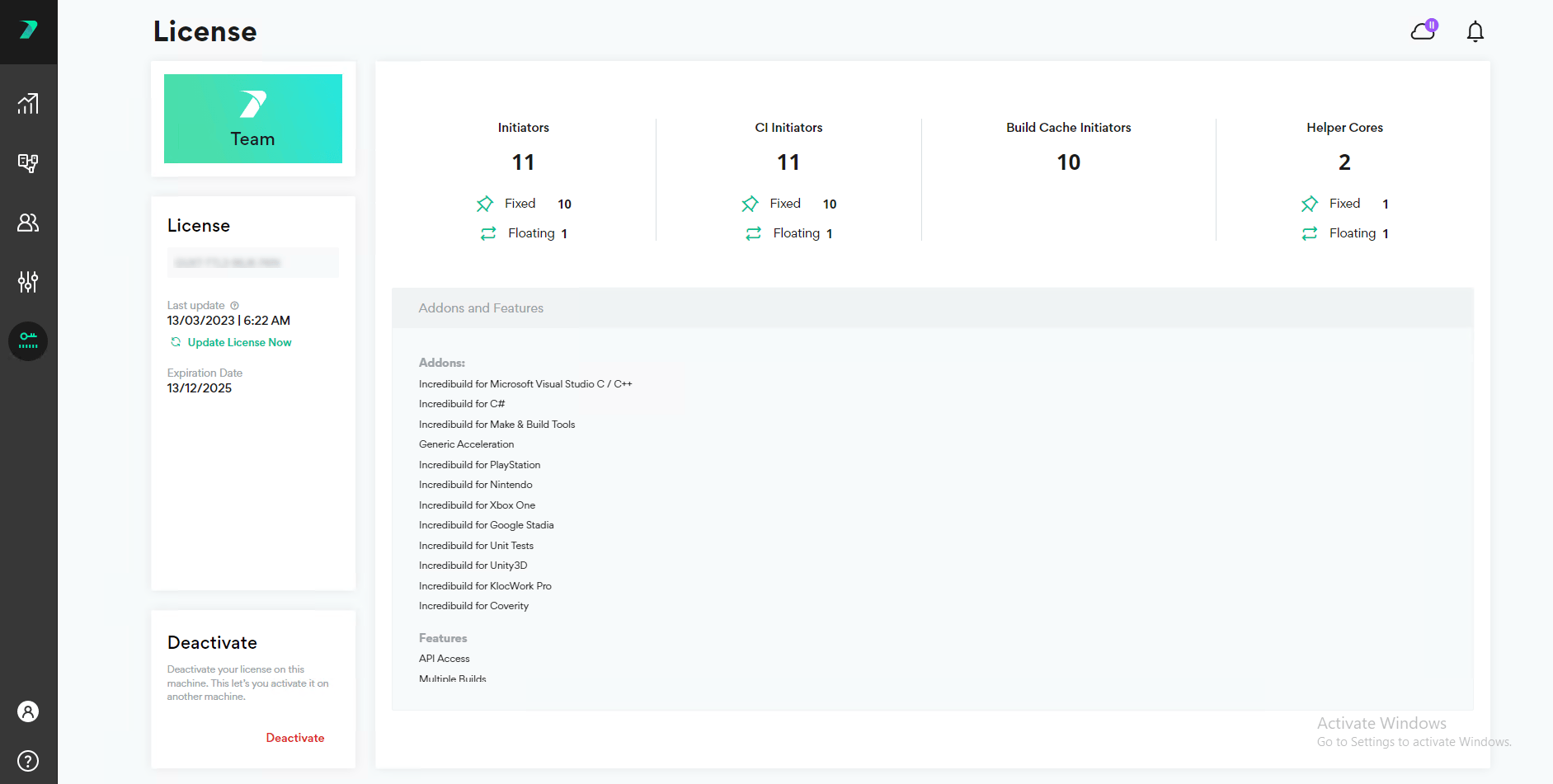
You can view your license package details in the **Coordinator > License** area.
 You can view a summary of your current license usage in the **Coordinator > Agent List** status bar.
 You can see the number of licenses that are currently assigned to agents, the number of available licenses, and whether any licenses are in the 24 hour cooldown period during which they cannot be moved to another Agent.
## Assigning Licenses to Agents
By default, each newly added agent receives a helper license. This behavior can be adjusted by opening a ticket with [support@incredibuild.com](mailto:support@incredibuild.com).
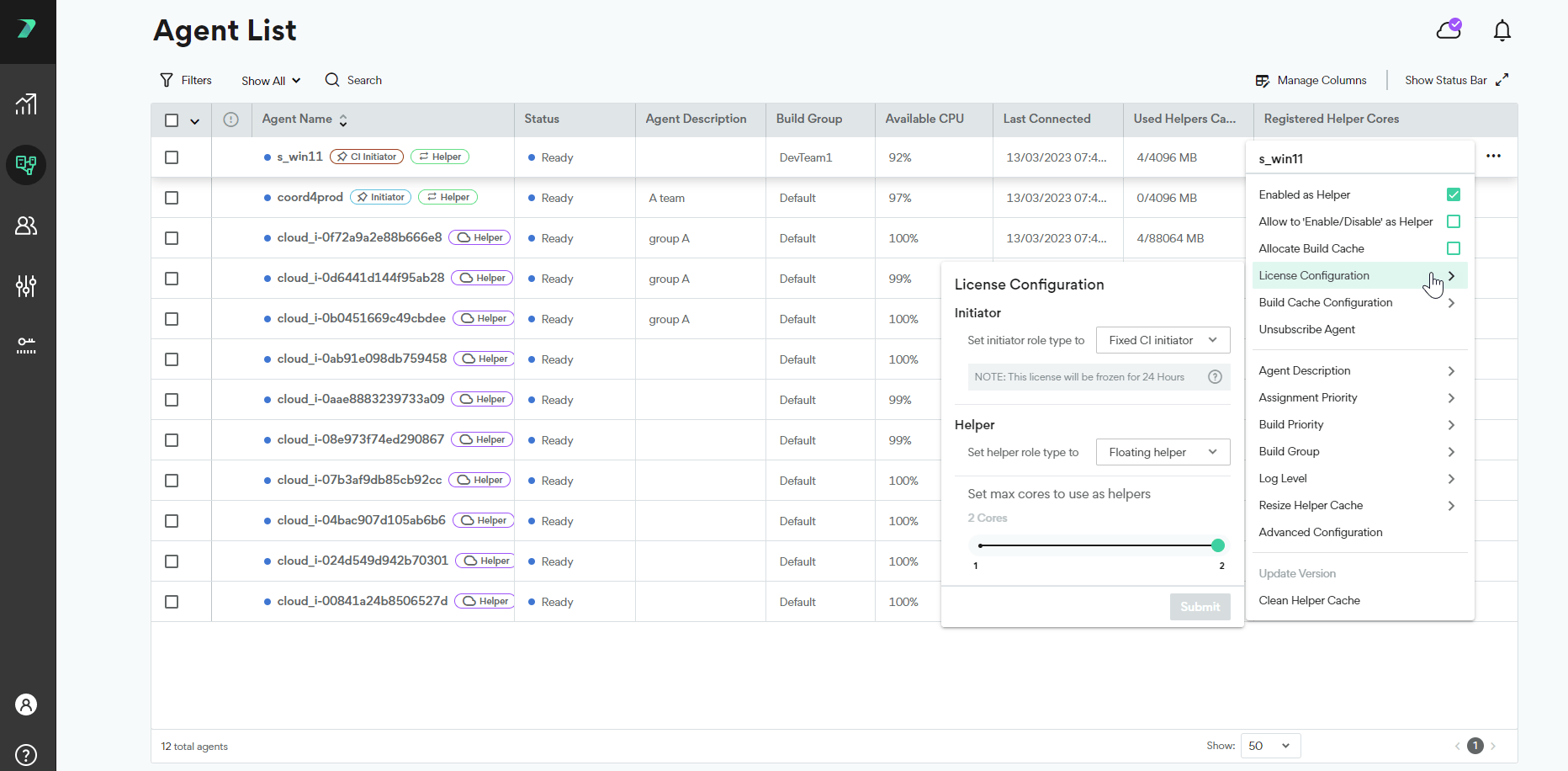
You can manually change the license of an individual agent, or a group of agents by going to the **menu** > **License Configuration**:
You can see the number of licenses that are currently assigned to agents, the number of available licenses, and whether any licenses are in the 24 hour cooldown period during which they cannot be moved to another Agent.
## Assigning Licenses to Agents
By default, each newly added agent receives a helper license. This behavior can be adjusted by opening a ticket with [support@incredibuild.com](mailto:support@incredibuild.com).
You can manually change the license of an individual agent, or a group of agents by going to the **menu** > **License Configuration**:
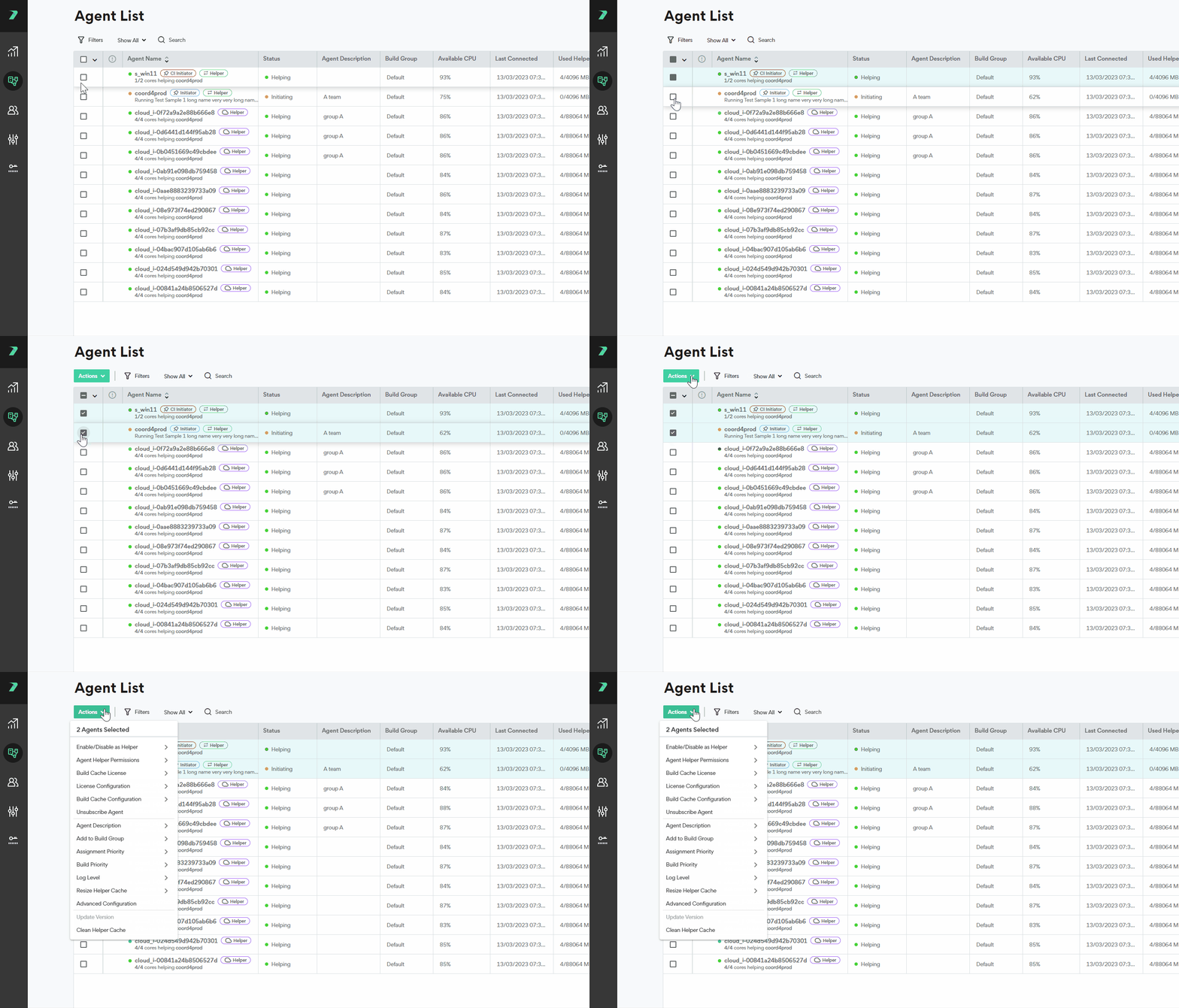
 To assign more than one Agent at once, select the Agents and use the Actions menu:
 ## General License Settings
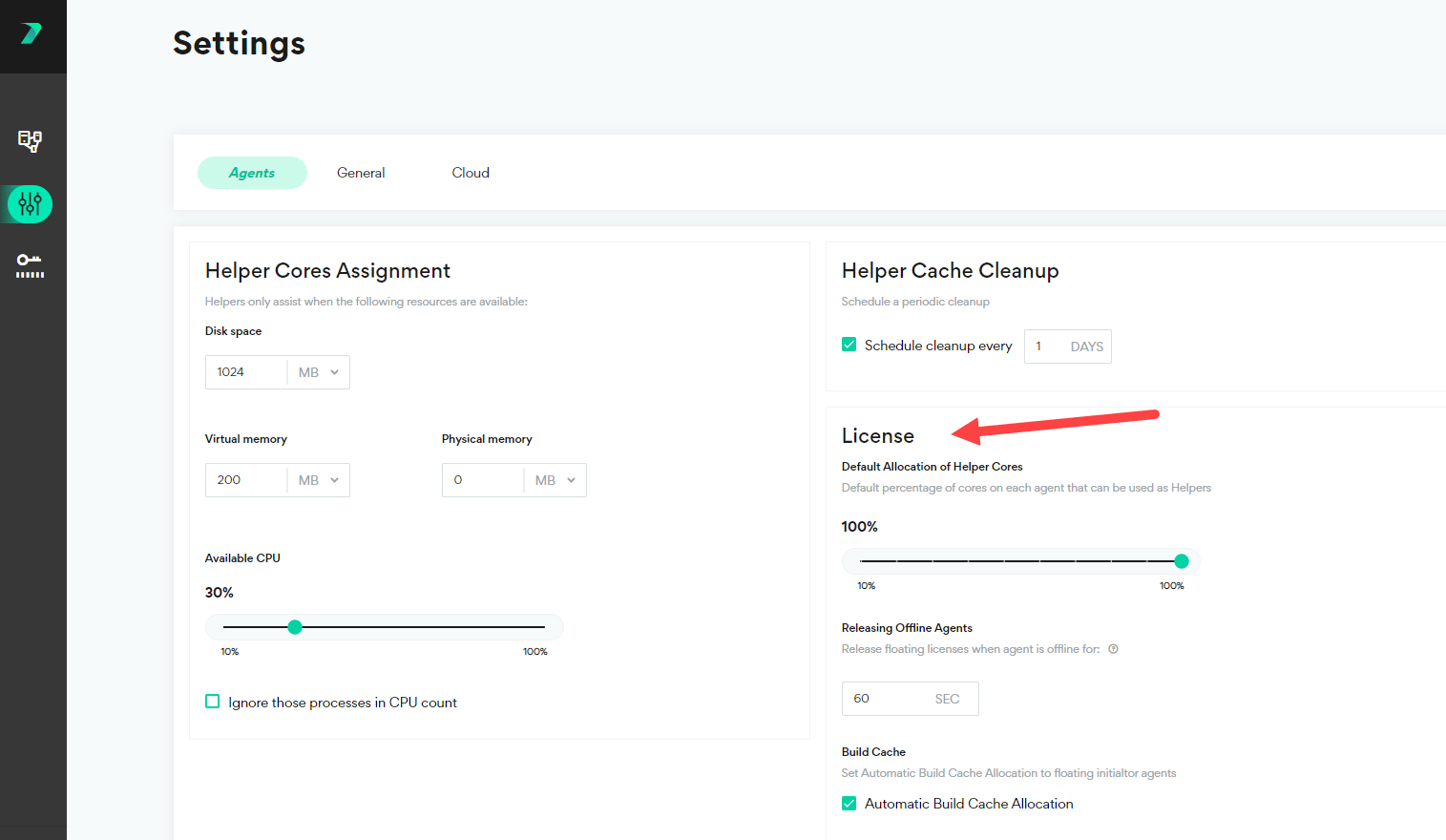
In the **Coordinator** > **Settings**> **Agent** area, you can manage all of the general license settings such as the timeout for offline licenses and the maximum number of helper cores per machine. For details, see [Coordinator Settings](/windows/10.3/coordinator-settings).
## General License Settings
In the **Coordinator** > **Settings**> **Agent** area, you can manage all of the general license settings such as the timeout for offline licenses and the maximum number of helper cores per machine. For details, see [Coordinator Settings](/windows/10.3/coordinator-settings).
 ## Refreshing Your License
If there was a change in your license, it can take a few hours for this to be automatically reflected in the Coordinator. You can instantly update it on your own at any time if you want to speed this process up.
In the **Coordinator** > **License** tab, click **Update License Now**.
[https://docs.incredibuild.com/Default.htm](https://docs.incredibuild.com/Default.htm)
[https://docs.incredibuild.com/lin/latest/Default.htm](https://docs.incredibuild.com/lin/latest/Default.htm)
[https://docs.incredibuild.com/win/latest/Default.htm](https://docs.incredibuild.com/win/latest/Default.htm)
[https://docs.incredibuild.com/cloud/Default.htm](https://docs.incredibuild.com/cloud/Default.htm)
Windowshttps\://[www.incredibuild.com/](http://www.incredibuild.com/) 10.3.0
## Refreshing Your License
If there was a change in your license, it can take a few hours for this to be automatically reflected in the Coordinator. You can instantly update it on your own at any time if you want to speed this process up.
In the **Coordinator** > **License** tab, click **Update License Now**.
[https://docs.incredibuild.com/Default.htm](https://docs.incredibuild.com/Default.htm)
[https://docs.incredibuild.com/lin/latest/Default.htm](https://docs.incredibuild.com/lin/latest/Default.htm)
[https://docs.incredibuild.com/win/latest/Default.htm](https://docs.incredibuild.com/win/latest/Default.htm)
[https://docs.incredibuild.com/cloud/Default.htm](https://docs.incredibuild.com/cloud/Default.htm)
Windowshttps\://[www.incredibuild.com/](http://www.incredibuild.com/) 10.3.0