> ## Documentation Index
> Fetch the complete documentation index at: https://docs-staging.incredibuild.com/llms.txt
> Use this file to discover all available pages before exploring further.
# Build Cache Configuration and Monitoring
Last updated on Jun 28, 2023
This feature is only available in Incredibuild's [Enterprise and Business Plans](/windows/10.4/pricing-plans) and is currently in limited availability. For more details, speak to your Customer Success Representative.
## How to Enable Build Cache on Initiators
1. Go to **Coordinator > Agent List**.
2. Select every initiator agent that you want to enable Build Cache.
3. Click **Actions** > **Allocate Build Cache**. If you do not see this option, make sure the agents have Initiator licenses.
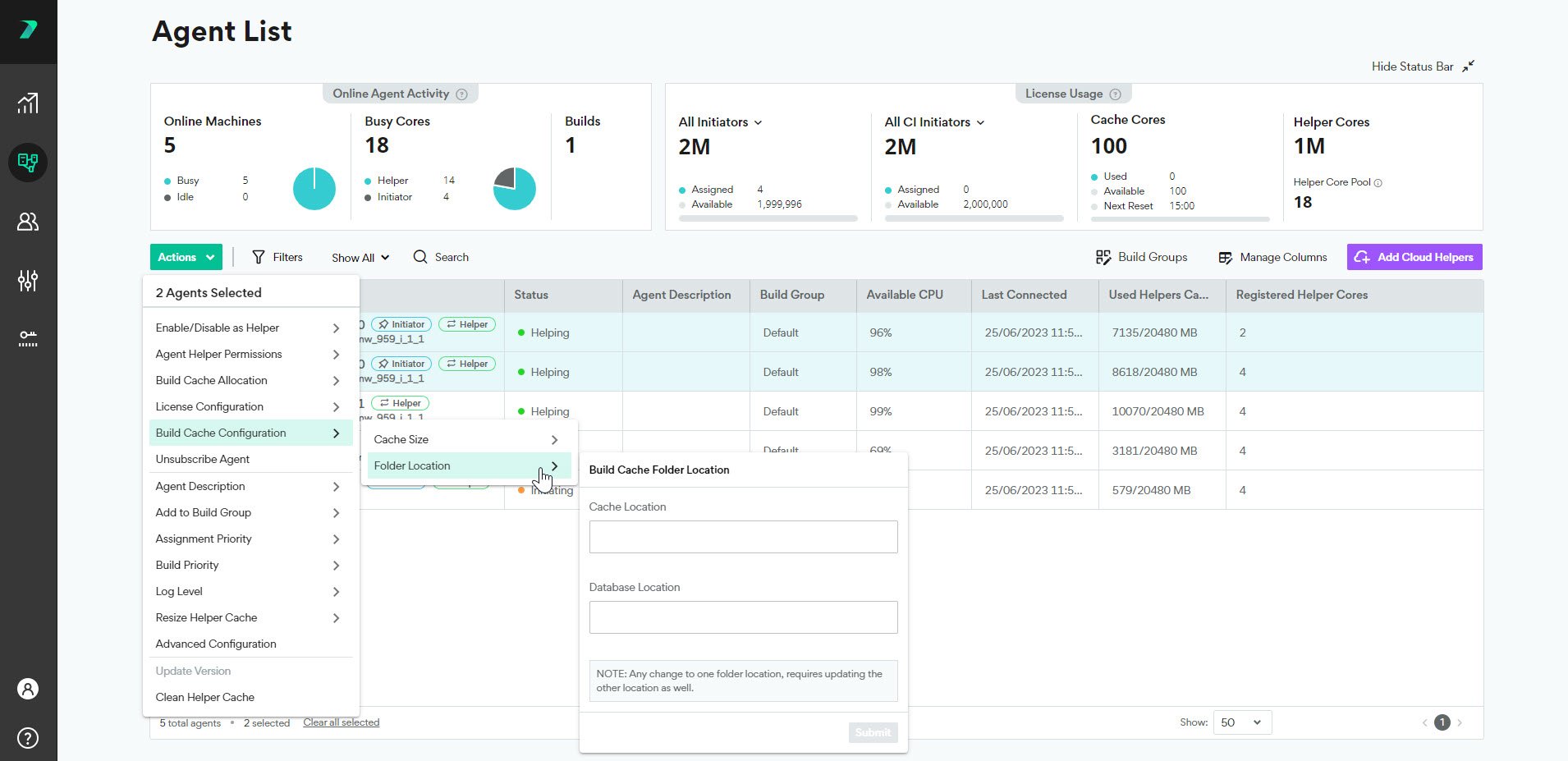
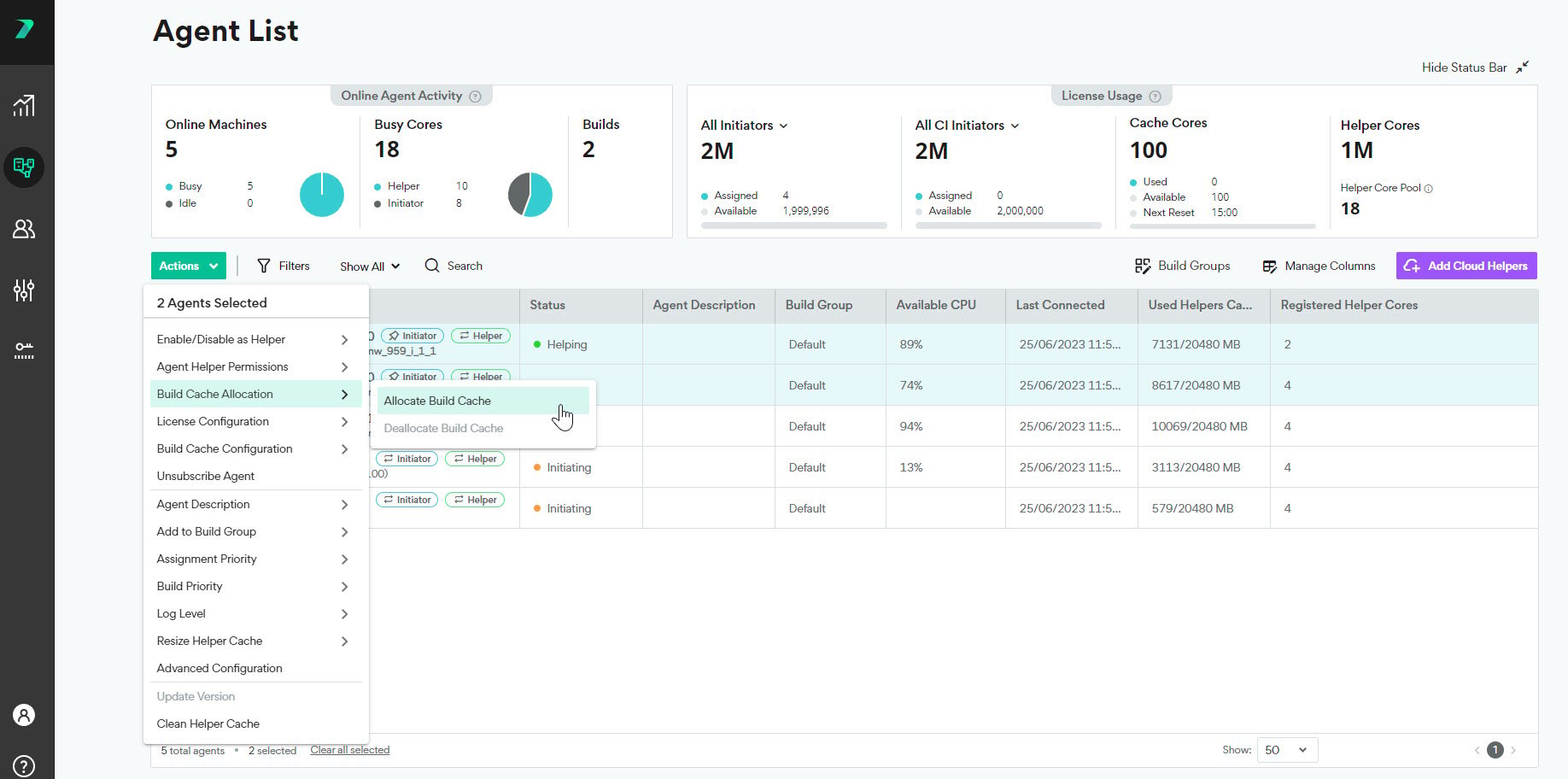 4. Click **Actions > Build Cache Configuration** and set the cache size and location . The size limit should be 2-3 times the size of the output of all of the builds that will contribute to this file cache, but the requirements may vary depending on your environment.
 5. On each Initiator Agent machine, you define if you want it to use a local cache, a remote cache, or both in the **Agent Settings > Build Cache Client > General** tab.
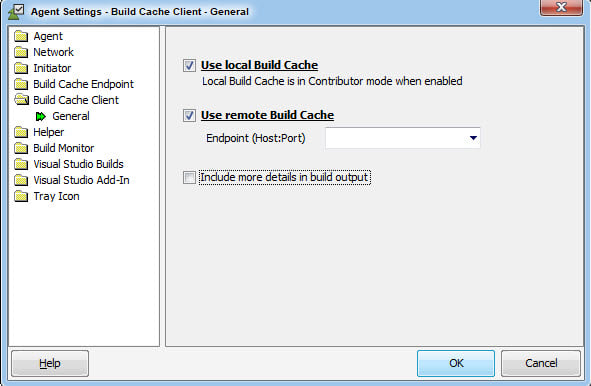 You can enhance the output in the command line and Build Monitor with more details using the **Include more details in build output** checkbox.
## Override the Build Cache Behavior for a Single Build
Clients define which Endpoint(s) are used by default in the Agent Settings, but this can be overridden in the build command for a single build. Flags are defined to allow you to override the build cache behavior in the [BuildConsole for Make and Build Tools](/windows/10.4/running-from-command-line), [BuildConsole for Visual Studio](/windows/10.4/build-console-cli), and [IBConsole for DevTools](/windows/10.4/ibconsole-cli-options) CLIs.
For example, if you are using the BuildConsole command to run Incredibuild for make and build tools and you want to use a remote cache, you would add the /buildcacheremoteserver=\[ip address:port] flag.
## File Cache Cleaning
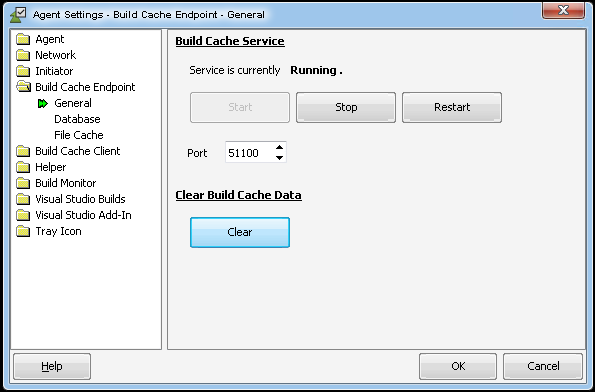
The file cache is optimized in various ways such as removing duplicate files and automatic cleanups. If the file cache fills up, it is automatically cleaned up by removing around 40% of the content. You can manually clear the cache as well in the Agent Settings of the Build Cache Endpoint.
You can enhance the output in the command line and Build Monitor with more details using the **Include more details in build output** checkbox.
## Override the Build Cache Behavior for a Single Build
Clients define which Endpoint(s) are used by default in the Agent Settings, but this can be overridden in the build command for a single build. Flags are defined to allow you to override the build cache behavior in the [BuildConsole for Make and Build Tools](/windows/10.4/running-from-command-line), [BuildConsole for Visual Studio](/windows/10.4/build-console-cli), and [IBConsole for DevTools](/windows/10.4/ibconsole-cli-options) CLIs.
For example, if you are using the BuildConsole command to run Incredibuild for make and build tools and you want to use a remote cache, you would add the /buildcacheremoteserver=\[ip address:port] flag.
## File Cache Cleaning
The file cache is optimized in various ways such as removing duplicate files and automatic cleanups. If the file cache fills up, it is automatically cleaned up by removing around 40% of the content. You can manually clear the cache as well in the Agent Settings of the Build Cache Endpoint.
 You can view how much of your cache has been used in the output tab of the [Build Monitor](/windows/10.4/build-monitor-what-to-know), as well as the output you see in the command line.
## Monitoring the Effectiveness of Build Cache
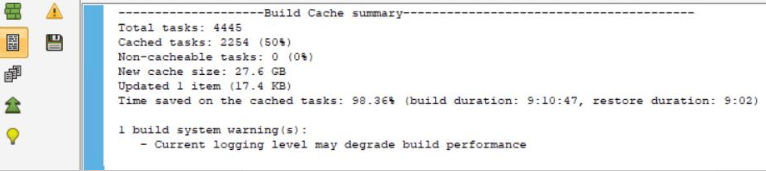
Details of how much time was saved from using the Build Cache is included in the output of all of your builds. This can be seen in the output tab of the [Build Monitor](/windows/10.4/build-monitor-what-to-know), as well as the output you see in the command line.
You can view how much of your cache has been used in the output tab of the [Build Monitor](/windows/10.4/build-monitor-what-to-know), as well as the output you see in the command line.
## Monitoring the Effectiveness of Build Cache
Details of how much time was saved from using the Build Cache is included in the output of all of your builds. This can be seen in the output tab of the [Build Monitor](/windows/10.4/build-monitor-what-to-know), as well as the output you see in the command line.
 You can also see information in the Build Monitor graphs.
 * **Tasks to cache** are tasks that were executed and are candidates to be added to the Build Cache for future builds.
* **Cache hits** are tasks that were retrieved from the Build Cache instead of being executed.
* **Tasks to cache** are tasks that were executed and are candidates to be added to the Build Cache for future builds.
* **Cache hits** are tasks that were retrieved from the Build Cache instead of being executed.