> ## Documentation Index
> Fetch the complete documentation index at: https://docs-staging.incredibuild.com/llms.txt
> Use this file to discover all available pages before exploring further.
# Assigning Agents to Build Groups During Installation
Last updated on Mar 08, 2023
For Enterprise Edition only
You can assign an Agent to a Build Group during its installation via:
* Silent installation
* Setup wizard
**Note:** The Build Group must already exist.
## Enabling Assignment
In order to assign an Agent to a Build Group during installation, enable this option on the Coordinator.
**To enable the assignment:**
1. Go to **Coordinator > Coordinator Settings > Coordinator > API Access**and select **Allow Agents self registration to Build Group**.
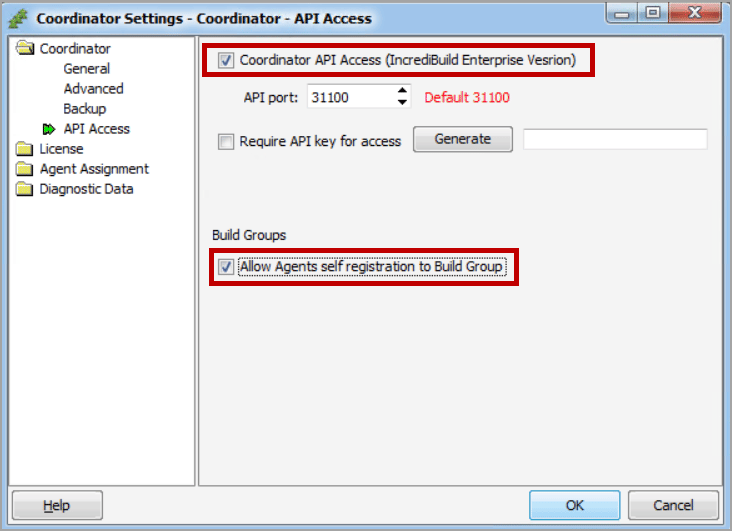 2. Click**OK**.
## Assigning an Agent via the Silent Installer
Use the option:`/Agent:Group={Group name}`
If a`{Group name}`is not specified, or if a non-existent group name is provided, the Agent is assigned to the**Default**Build Group.
**To assign an Agent to a Build Group via the Automated Installer:**
* Use the command, adding the`{Group name}`value:
```
IBSetupConsole.exe /Install /Components=Agent /Coordinator={COORDINATORNAME} /Agent:Group={Group name} [General Options] [Agent Options]
```
For example:
```
IBSetupConsole.exe /Install /Components=Agent /Coordinator=win10-1 /Agent:Group=QA
```
**To install both a Coordinator and an Agent:**
* Use the following command, adding the`{Group name}`value:
```
IBSetupConsole.exe /Install /Components=Coordinator,Agent /Coordinator={COORDINATORNAME} /Agent:Group={Group name} [General Options] [Agent Options]
```
**To install an Agent with a Single-Use VM license:**
* Use the command, adding the`{Group name}`value:
```
IBSetupConsole.exe /Install /Components=Agent,oneuse /Coordinator={COORDINATORNAME} /Agent:Group={Group name} [General Options] [Agent Options]
```
## Assigning an Agent via the Setup Wizard
**To assign an Agent to a Build Group via the Setup wizard:**
1. Double-click the Incredibuild Setup file to start the Agent installation.
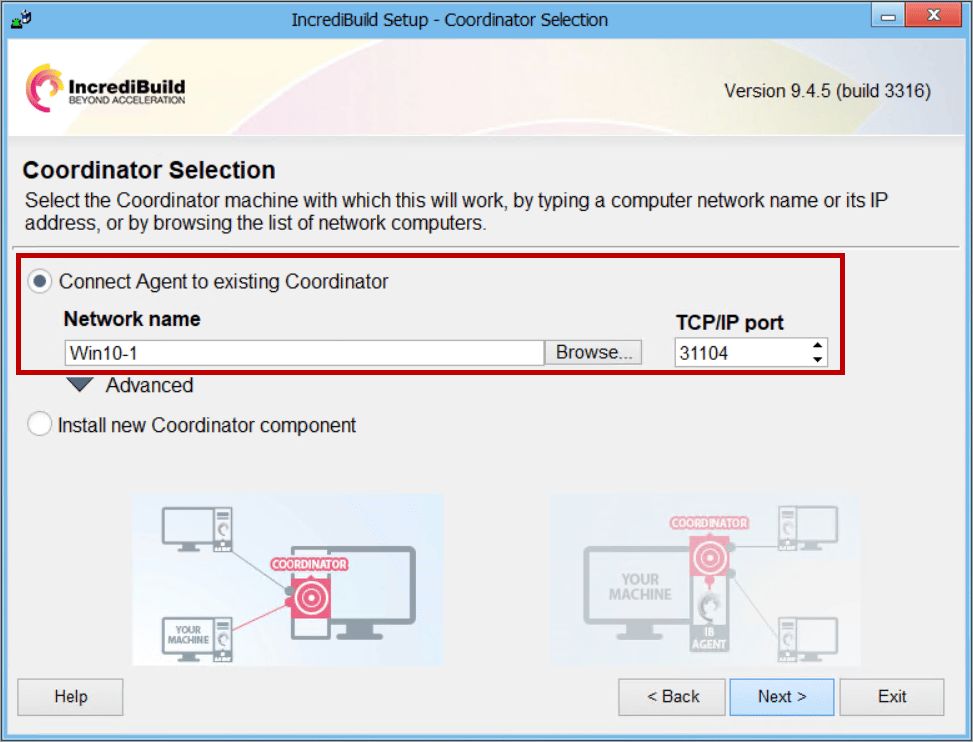
2. Follow the Setup wizard instructions, and click**Next**until you reach the**Coordinator Selection**page.
3. Select**Connect Agent to existing Coordinator**, and in the**Network name**field, enter the Coordinator IP address or hostname.
2. Click**OK**.
## Assigning an Agent via the Silent Installer
Use the option:`/Agent:Group={Group name}`
If a`{Group name}`is not specified, or if a non-existent group name is provided, the Agent is assigned to the**Default**Build Group.
**To assign an Agent to a Build Group via the Automated Installer:**
* Use the command, adding the`{Group name}`value:
```
IBSetupConsole.exe /Install /Components=Agent /Coordinator={COORDINATORNAME} /Agent:Group={Group name} [General Options] [Agent Options]
```
For example:
```
IBSetupConsole.exe /Install /Components=Agent /Coordinator=win10-1 /Agent:Group=QA
```
**To install both a Coordinator and an Agent:**
* Use the following command, adding the`{Group name}`value:
```
IBSetupConsole.exe /Install /Components=Coordinator,Agent /Coordinator={COORDINATORNAME} /Agent:Group={Group name} [General Options] [Agent Options]
```
**To install an Agent with a Single-Use VM license:**
* Use the command, adding the`{Group name}`value:
```
IBSetupConsole.exe /Install /Components=Agent,oneuse /Coordinator={COORDINATORNAME} /Agent:Group={Group name} [General Options] [Agent Options]
```
## Assigning an Agent via the Setup Wizard
**To assign an Agent to a Build Group via the Setup wizard:**
1. Double-click the Incredibuild Setup file to start the Agent installation.
2. Follow the Setup wizard instructions, and click**Next**until you reach the**Coordinator Selection**page.
3. Select**Connect Agent to existing Coordinator**, and in the**Network name**field, enter the Coordinator IP address or hostname.
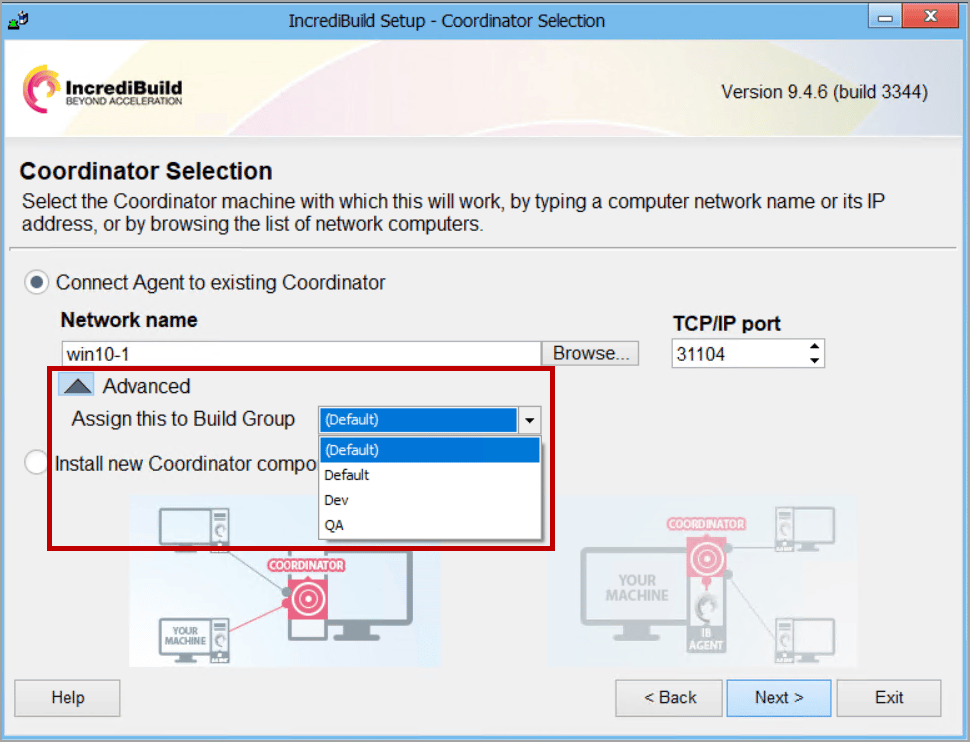
 4. Click the**Advanced**arrow and then, from the**Assign this to Build Group**dropdown list, select the required Build Group.
 5. Click**Next**and continue to follow the wizard instructions until you complete the Agent installation
[https://docs.incredibuild.com/Default.htm](https://docs.incredibuild.com/Default.htm)
[https://docs.incredibuild.com/lin/latest/Default.htm](https://docs.incredibuild.com/lin/latest/Default.htm)
[https://docs.incredibuild.com/win/v9/Default.htm](https://docs.incredibuild.com/win/v9/Default.htm)
[https://docs.incredibuild.com/cloud/Default.htm](https://docs.incredibuild.com/cloud/Default.htm)
Windowshttps\://[www.incredibuild.com/](http://www.incredibuild.com/) 9.6.11
5. Click**Next**and continue to follow the wizard instructions until you complete the Agent installation
[https://docs.incredibuild.com/Default.htm](https://docs.incredibuild.com/Default.htm)
[https://docs.incredibuild.com/lin/latest/Default.htm](https://docs.incredibuild.com/lin/latest/Default.htm)
[https://docs.incredibuild.com/win/v9/Default.htm](https://docs.incredibuild.com/win/v9/Default.htm)
[https://docs.incredibuild.com/cloud/Default.htm](https://docs.incredibuild.com/cloud/Default.htm)
Windowshttps\://[www.incredibuild.com/](http://www.incredibuild.com/) 9.6.11